Speakers Guide

Beyond the Buzz: Taming the Tangled Web of Home Wi-Fi for Seamless Streaming

The promise of high-definition streaming, smooth online gaming, and reliable smart home devices often bumps up against the frustrating reality of slow loading times, dropped connections, and choppy audio. Many users, from casual movie watchers to dedicated online gamers, find themselves battling inconsistent performance even with seemingly decent internet plans. The common frustration isn’t usually with the internet service provider itself, but rather with how that internet signal makes its way from the modem to all the devices within the home. This often boils down to a single, real-world question: “Why is my home Wi-Fi so slow and unreliable, especially in certain rooms?”

Understanding the Unseen Obstacles to Optimal Wi-Fi

Your home Wi-Fi signal is a radio wave, and like all radio waves, it’s susceptible to interference and physical obstructions. Imagine trying to talk to someone through a thick brick wall – the sound gets muffled or doesn’t get through at all. Your Wi-Fi signal faces similar challenges. Common culprits for signal degradation include thick walls (especially concrete or brick), large appliances like refrigerators and microwaves, and even other electronic devices operating on similar frequencies, such as cordless phones or baby monitors. The placement of your Wi-Fi router is a critical, yet often overlooked, factor. Tucking it away in a corner cabinet or behind a large piece of furniture dramatically reduces its reach and effectiveness.

A practical example: You might experience perfect streaming in the living room, but the same show buffers constantly in the bedroom right down the hall. This isn’t magic; it’s physics. The signal strength diminishes with distance and obstacles. A common mistake is assuming the router can cover an entire multi-story house from a single, out-of-the-way location. For optimal performance, the router needs a central, elevated position, free from physical barriers, to broadcast its signal evenly throughout your living space.

Strategic Router Placement and Channel Optimization

To improve your home Wi-Fi, start by relocating your existing router. Aim for a central location in your home, ideally on the main floor if you have multiple levels, and place it on a shelf or table rather than on the floor. Avoid placing it near large metal objects, thick walls, or other electronics that could cause interference. This simple step can often dramatically improve signal strength in previously dead zones. Think of it like a lighthouse; the higher and clearer its position, the further its light can travel. This takes mere minutes to try and costs nothing.

Another practical consideration is Wi-Fi channels. Routers broadcast on specific radio channels, and if your neighbor’s router is using the same channel, both signals can become “noisy,” leading to slower speeds. Most modern routers can automatically select the least congested channel, but older models or specific environments might benefit from manual adjustment. Look up ways to check Wi-Fi channels in your area (many free smartphone apps can help with this) and then access your router’s settings (usually via a web browser using an IP address like 192.168.1.1) to select a less crowded channel. Stick to channels 1, 6, or 11 for the 2.4 GHz band, as these don’t overlap.

Considering Range Extenders, Mesh Systems, and Power Needs

If optimal router placement still leaves you with Wi-Fi dead zones, consider additional hardware. For smaller homes or specific problem areas, a Wi-Fi range extender can be a cost-effective solution. This device picks up your existing Wi-Fi signal and rebroadcasts it, expanding your coverage. However, it’s crucial to understand that extenders often cut the available bandwidth in half. For larger homes or those with multiple devices demanding high bandwidth (e.g., 4K streaming on several TVs simultaneously), a mesh Wi-Fi system is a superior alternative. Mesh systems use multiple “nodes” strategically placed around your home to create a seamless, unified Wi-Fi network, providing consistent speeds and coverage without the bandwidth reduction associated with simple extenders.

When selecting any Wi-Fi equipment, always check for compatibility with your existing modem and internet speed. There’s no point in buying a high-speed router if your internet plan is only 50 Mbps. Also, be mindful of power requirements; while most Wi-Fi devices use standard wall outlets, ensure you have enough available for optimal placement without needing excessive extension cords. Finally, ease of setup is a key practical consideration. Modern routers and mesh systems are often designed for very straightforward, app-guided installation, making them accessible even for those with no technical background. These solutions offer practical ways to ensure that the entertainment, work, and convenience promised by your everyday technology are truly delivered throughout your entire home.

Speakers Guide

Beyond the Buzz: Taming the Tangled Web of Home Audio (Sound Quality for Everyone)

You bought a new soundbar, shiny and promising. You plug it into your TV, excited for cinematic sound, only to be met with muffled dialogue or tinny music. Or maybe your trusty speakers, after years of service, just don’t sing like they used to. Improving sound quality at home doesn’t require an audiophile’s deep pockets or a degree in acoustics. It often boils down to understanding a few basic principles and making small, smart adjustments. This article will guide you through common pitfalls and practical solutions for getting the best sound from your everyday home audio setup.

Placement Perfection: Where Your Speakers Truly Belong

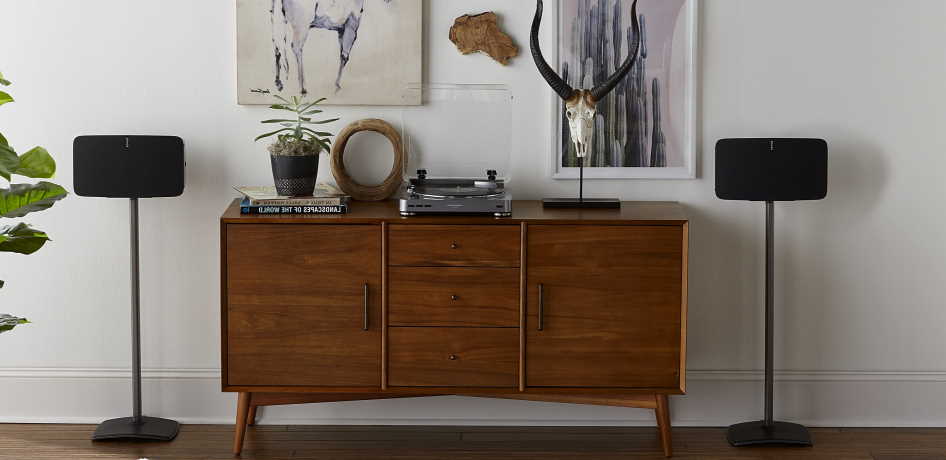
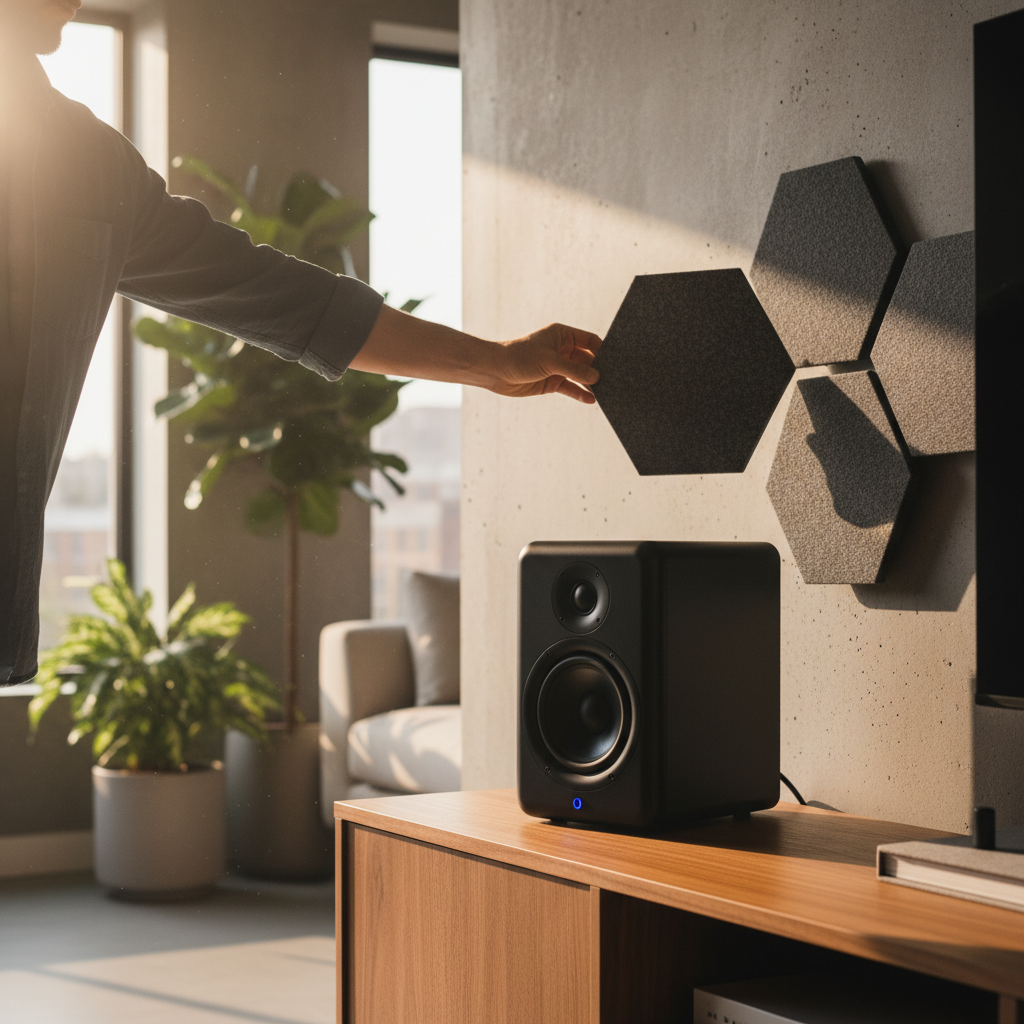
The biggest, yet often overlooked, factor in sound quality is speaker placement. Simply throwing speakers onto any available surface rarely yields optimal results. For stereo speakers, envision an equilateral triangle between the two speakers and your primary listening spot. Each speaker should be angled slightly inward, pointing towards you. This “toe-in” helps create a more focused soundstage, making instruments and voices sound like they’re coming from specific locations. Keep speakers away from corners or flush against walls if possible, as this can exaggerate bass frequencies, making sound muddy and indistinct. If you have a soundbar, place it directly below your TV, centered, and aim to keep it clear of any obstructions that might block sound waves. Even a small piece of décor in front of a speaker can noticeably degrade sound quality.

Cable Connection Clarity: The Right Wires for the Job

Often, sound issues stem from incorrect or inadequate cabling. For most modern TVs and soundbars, an HDMI ARC (Audio Return Channel) or eARC (Enhanced Audio Return Channel) connection is your best bet. Look for the HDMI port on your TV explicitly labeled “ARC” or “eARC” and connect it to the corresponding port on your soundbar. This single cable carries both video and audio, simplifies remote control functions, and generally offers the best sound quality. If your TV or soundbar lacks ARC/eARC, an optical audio cable (TOSLINK) is the next best option. It’s a thin cable with square connectors that transmits digital audio. Avoid using analog RCA cables (red and white plugs) unless absolutely necessary, as they can be more susceptible to interference and deliver lower fidelity. Always ensure cables are firmly seated in their respective ports; a loose connection is a common culprit for crackling or no sound at all.

Tuning Your Tech: Basic Settings for Better Audio

Once your speakers are placed and connected, dive into your TV and audio device settings. On your TV, look for audio output settings. Ensure it’s set to “External Speakers” or “Soundbar” rather than “TV Speakers.” Also, check for audio format settings. For most setups, “Dolby Digital” or “DTS” (if available) will provide the best surround sound experience, though “PCM” (Pulse-Code Modulation) is a reliable default for stereo sound. On your soundbar or receiver, explore pre-set sound modes like “Movie,” “Music,” or “Dialogue Enhance.” Experiment with these to find what sounds best for different content. Many audio devices also offer basic bass and treble adjustments; a subtle tweak here can make a big difference without needing complex equalization. Remember that larger rooms might benefit from slightly more bass, while smaller spaces might need less to avoid boominess. Similarly, if dialogue is consistently muddled, a slight increase in treble can improve clarity. Don’t be afraid to experiment, but make small changes and listen carefully for the impact.

Speakers Guide

Making Your Headphones Sound Their Best: A Simple Guide to Better Audio

You’ve got a new pair of headphones, or maybe you’ve been using your existing ones for a while, and you’re wondering why the music, podcasts, or game sounds aren’t as clear or as rich as you’d hoped. Many people connect their headphones and just start listening, but a few simple adjustments and understandings can dramatically improve your audio experience. This guide will walk you through common scenarios and easy fixes to unlock the full potential of your everyday headphones, making every listen more enjoyable.

Understanding Your Audio Source and Volume Levels

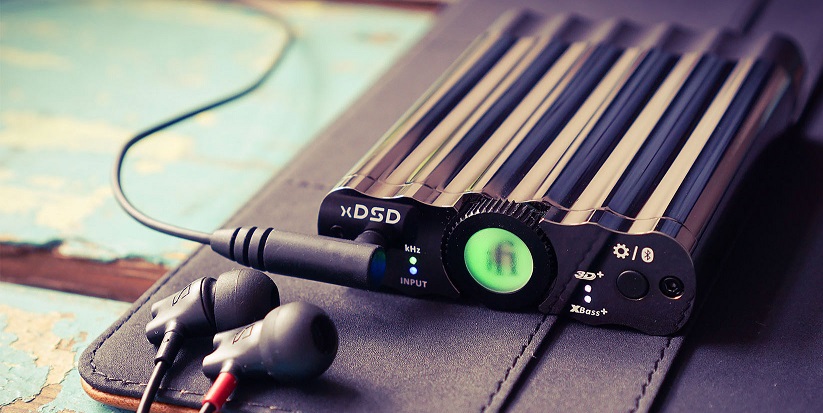
The quality of the sound you hear often starts before it even reaches your headphones. The device playing your audio – be it a smartphone, computer, or music player – has a significant impact. Most devices have built-in digital-to-analog converters (DACs) and amplifiers that process the sound. While these are often good enough for casual listening, their quality can vary. A common mistake is listening to audio that’s too quiet, causing you to turn up the volume too high later, which can introduce distortion. Conversely, playing audio that’s already highly compressed or low quality (like some internet radio streams or old downloads) won’t sound magically better on good headphones. Always try to use the highest quality audio files or streams available. For volume, a good rule of thumb is to set your device’s volume to around 70-80% of its maximum before adjusting the headphone’s own volume (if it has one). This provides a strong, clean signal without overdriving the amplifier or introducing unwanted noise.

Checking Connections and Cable Health

It sounds obvious, but loose or damaged connections are a frequent culprit for poor sound. For wired headphones, ensure the connector is fully plugged into both your audio device and, if detachable, into the headphones themselves. A common issue with 3.5mm jacks is not pushing them in all the way, leading to sound only coming from one side or muffled audio. Check the cable for any kinks, fraying, or visible damage. A damaged cable can cause intermittent sound, static, or a complete loss of audio. If your headphones came with multiple cables, try switching them out to see if the problem persists. For Bluetooth headphones, ensure they are properly paired and connected to only one device at a time. Interference from other wireless devices or physical obstacles between your headphones and the source can degrade the signal, leading to dropouts or lower fidelity. Always try to keep your audio source relatively close to your Bluetooth headphones for the best signal integrity.

Exploring Your Device’s Sound Settings and Equalizers

Most modern smartphones, computers, and even some dedicated music players offer built-in sound settings or equalizers (EQs). These tools allow you to adjust the balance of different sound frequencies, like bass, midrange, and treble. For beginners, it’s often best to start with a “Flat” or “Neutral” EQ setting, which aims to reproduce the sound as it was recorded. From there, you can make subtle adjustments. If your headphones sound too bassy, try slightly reducing the lower frequencies. If vocals seem unclear, a small boost in the midrange might help. Be cautious with aggressive EQ settings; too much boosting can introduce distortion or make the sound unnatural. Some devices also offer “sound enhancements” or “virtual surround sound” options. While these can sometimes improve the experience for specific content (like movies), they can also color the sound in ways that are not ideal for music. Experiment with these settings, but always trust your ears: if it doesn’t sound better, switch it off. Remember that headphones vary greatly in their natural sound profile, so what works for one pair might not work for another.

Speakers Guide

Unlock Better Sound: A Beginner’s Guide to Connecting External Speakers to Your TV

Many people find their television’s built-in speakers lacking, especially when watching movies, sports, or playing video games. The thin, often tinny sound can detract significantly from the viewing experience. Connecting external speakers can dramatically improve audio quality, offering richer bass, clearer dialogue, and a more immersive soundstage. However, for those unfamiliar with audio setups, the process of connecting these devices can seem daunting, leading to confusion about cables, ports, and settings. This guide will demystify the process, helping you achieve superior sound for your home entertainment.

Choosing the Right Connection Method

The first step in connecting external speakers is identifying the audio output options on your TV and the input options on your speakers or sound system. Most modern TVs offer several ways to send audio to external devices. The most common and recommended methods are HDMI ARC (Audio Return Channel) and Optical (TOSLINK). Less common, but still available on some older TVs, are RCA stereo outputs (red and white cables) or 3.5mm headphone jacks.

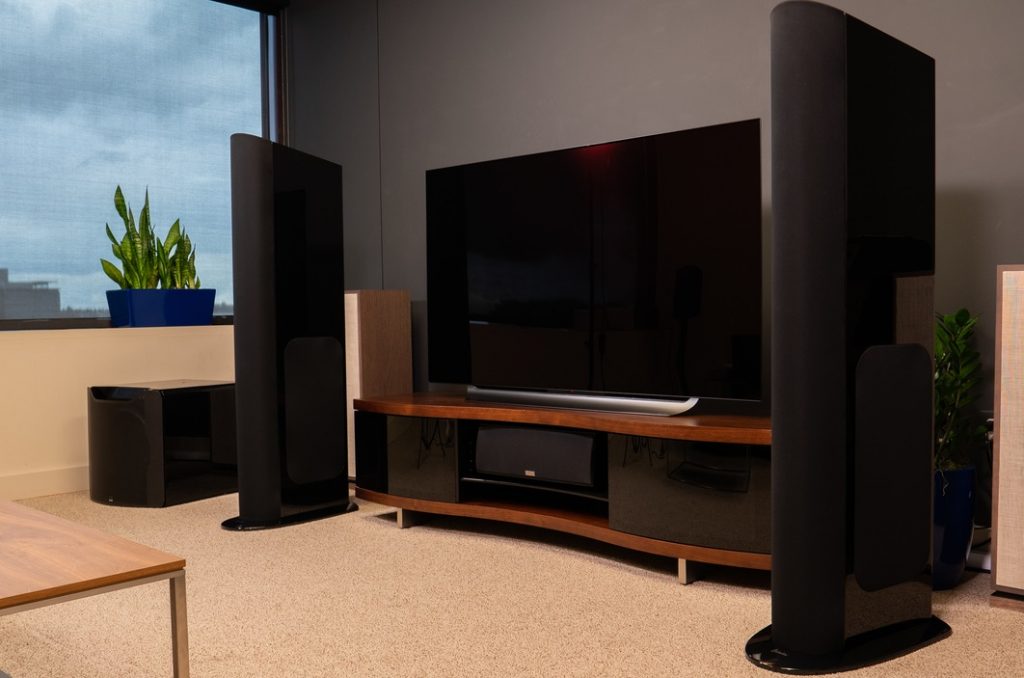
HDMI ARC is generally the best option for simplicity and performance. It allows a single HDMI cable to carry both video from your TV to a soundbar or AV receiver and audio back from the TV to the external device. This means fewer cables and often easier control with your TV remote. To use HDMI ARC, both your TV and your external audio device must support it, and you’ll typically connect to a specific HDMI port labeled “ARC” or “eARC” on your TV. For instance, if you have a soundbar, connecting an HDMI cable from the TV’s HDMI ARC port to the soundbar’s HDMI ARC output is often all it takes.

Optical (TOSLINK) is another excellent digital audio connection that provides high-quality sound. It involves a single fiber optic cable. This is a reliable choice if your TV or audio device doesn’t support HDMI ARC, or if you’re connecting a device like an older soundbar or a stereo amplifier that lacks HDMI inputs. You’ll typically find a square-shaped port on both devices. A key practical consideration for optical cables is to remove the small plastic caps from both ends before plugging them in, as these protect the delicate fiber during shipping.

Step-by-Step Connection Guide

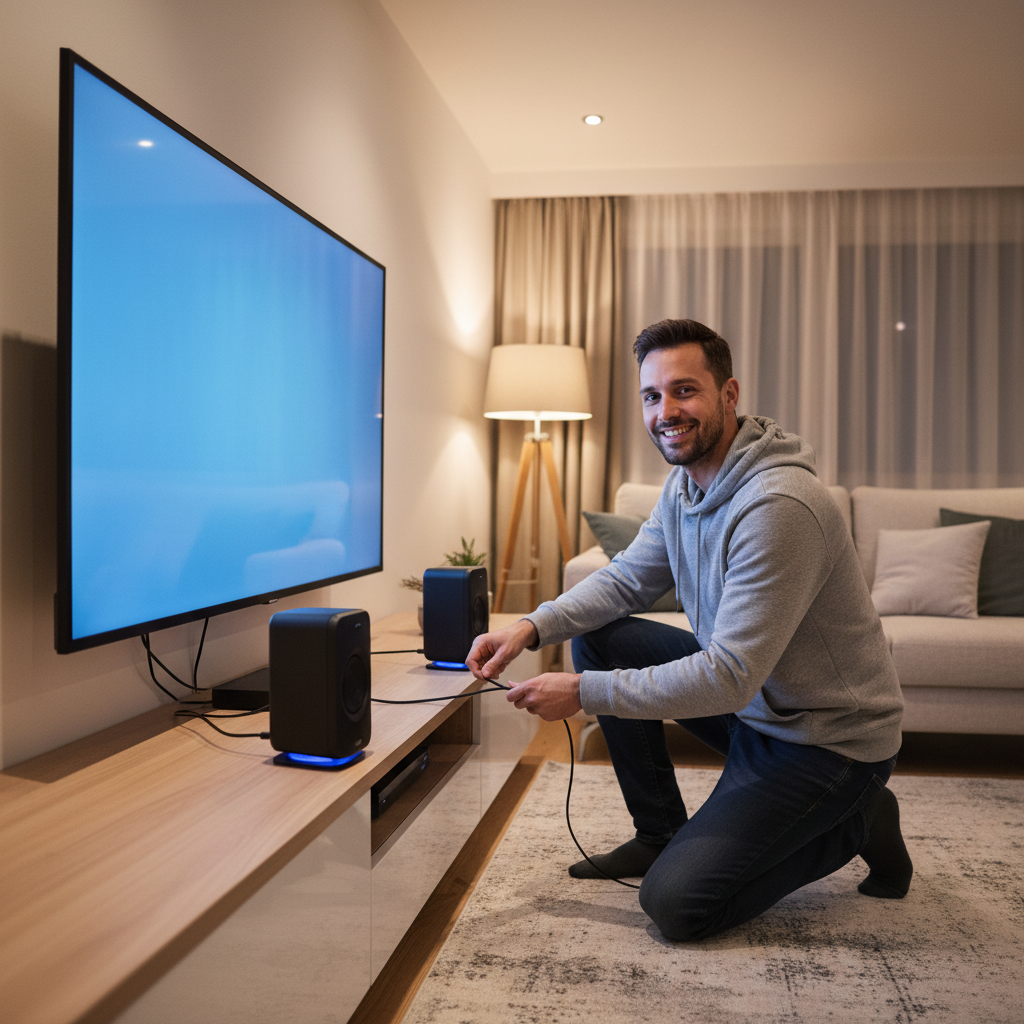
Once you’ve chosen your connection method, the physical setup is straightforward. Let’s use HDMI ARC as the primary example, as it’s increasingly common. First, power off both your TV and your external audio device. Locate the HDMI port labeled “HDMI ARC” or “eARC” on your TV. Next, find the corresponding HDMI ARC output on your soundbar or AV receiver. Connect a high-quality HDMI cable between these two ports. Ensure the cable is securely plugged into both ends. If using an optical cable, connect one end to the TV’s “Optical Out” port and the other to the audio device’s “Optical In” port, remembering to remove any protective caps.

After making the physical connection, power on your external audio device first, then your TV. Now, you’ll need to tell your TV to use the external speakers. Navigate to your TV’s audio settings menu. The exact names of these settings vary between brands (e.g., Samsung, LG, Sony), but you’ll generally look for options like “Sound Output,” “Audio Output,” or “Speakers.” Select the option corresponding to your connection, such as “HDMI ARC,” “External Speakers,” or “Optical.”

Troubleshooting Common Issues

Even with the correct connections, you might encounter issues. One common problem is no sound coming from your external speakers after setup. First, double-check that your TV’s internal speakers are indeed turned off in the audio settings, as some TVs might default to their own speakers even with an external device connected. Ensure the volume on both your TV and your external audio device is turned up and not muted.

Another common issue involves compatibility. While HDMI ARC is widely supported, some older TVs or soundbars might not handle certain audio formats, leading to issues with surround sound. If you’re experiencing distorted or intermittent audio, try adjusting your TV’s digital audio output format. Look for a setting like “Digital Audio Out Format” and try changing it from “Bitstream” to “PCM” (Pulse Code Modulation). PCM is a more universal format and can often resolve compatibility issues, especially for beginners.

Finally, always remember power requirements. Most external audio devices, whether a soundbar or a full amplifier, require their own power source. Ensure they are plugged into a working electrical outlet and powered on. By following these practical steps and keeping an eye on these key considerations, you can easily upgrade your TV’s audio and transform your home entertainment experience.